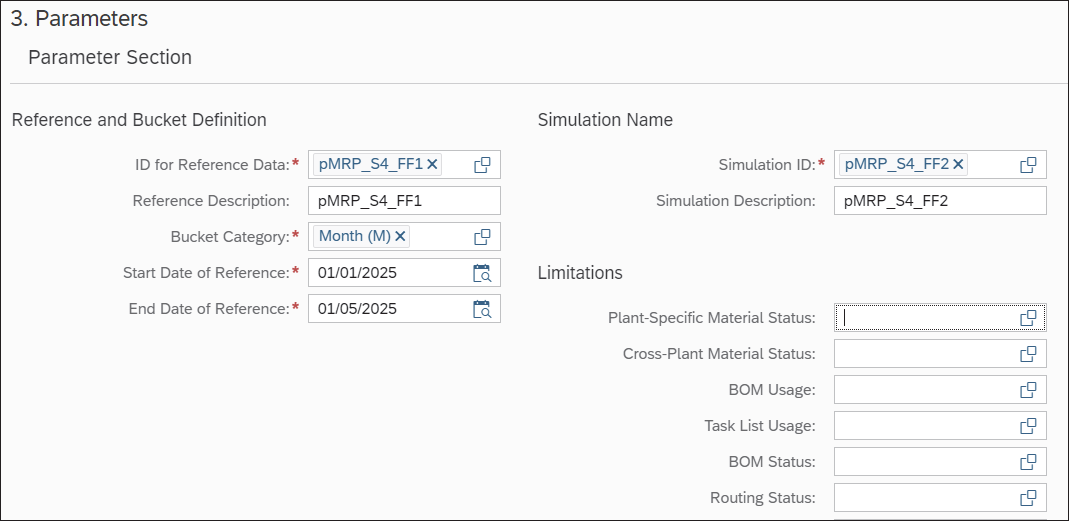
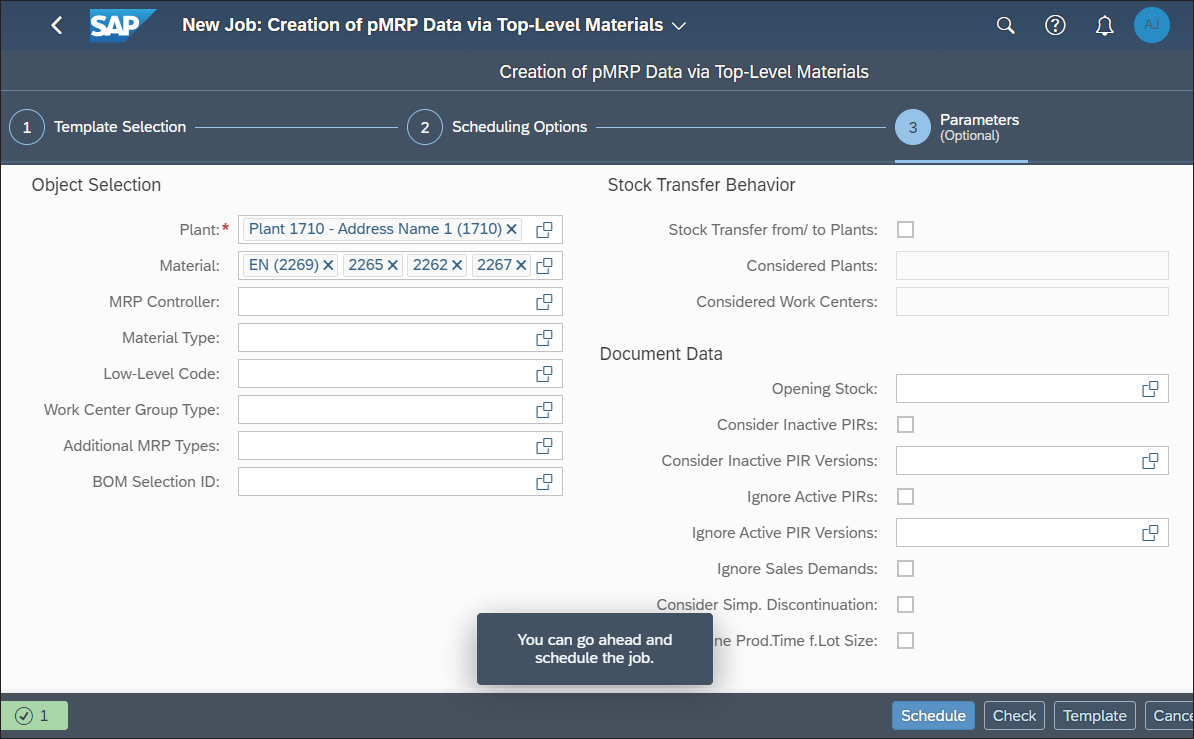
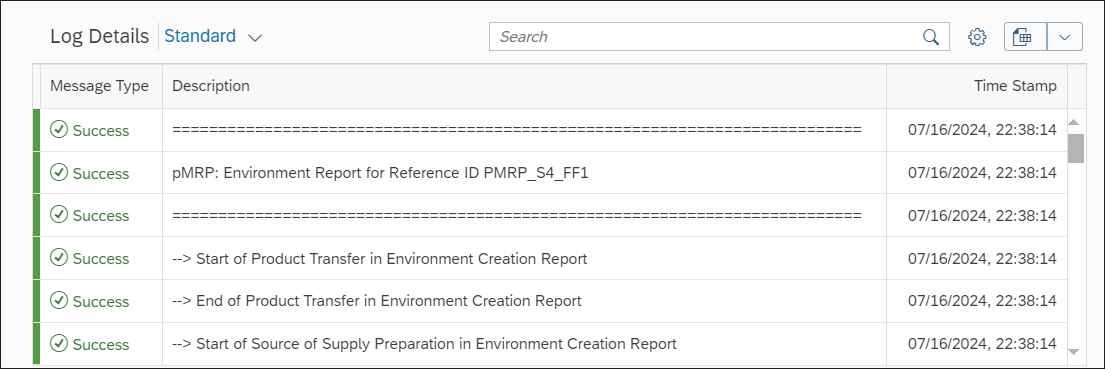
Learn how to set up a pMRP simulation from scratch, including how to configure job templates, selection criteria, and scheduling options to get your planning environment ready to run. The first step in the predictive MRP (pMRP) process in SAP S/4HANA is to create a pMRP simulation, wherein you as a planner can choose to restrict a set of master data for simulation purposes. When you create a simulation, you can select which top-level materials, components, or work centers will be considered for pMRP. In pMRP, the planning will happen during the simulation creation itself. With pMRP, you will be able to process the simulation immediately after the creation is finished and will not have to wait for a planning run. The pMRP process uses simplified planning logic, in which all materials use a deterministic MRP and a lot-for-lot procedure. Before creating the simulation, you must ensure that the relevant master data has been created. You must also have created the PIRs, since they will be the main input into the pMRP simulation. The system will plan the selected materials and determine the work center capacity requirements based on those PIRs. A word of caution here: when a simulation is created, master data will be copied into it, so subsequent changes to master data may not be considered. Creating a pMRP simulation is basically a background job that you can schedule through the Schedule pMRP Simulation Creation app. You can also use this application to manage background jobs that are already finished, scheduled, or in process. As shown in the figure below, an icon in the Log column will show the status of the finished background executions, and another icon appears in the Results column. Choosing the icon in the Log column will show the details of success, warning, or error messages that may have been triggered during each step of simulation creation. You can create, copy, and delete a simulation creation (although deletion is only possible for scheduled jobs). To create a new application job, choose Create on the screen, which will bring up the screen shown below. You can use the dropdown list in the Job Template field to choose from the following three job templates, which have different selection criteria. In this template, object selection is based on the material master, so the selection criteria will be focused on material master information, such as material number, MRP controller, and low-level code. The system will look for PIRs for the relevant materials and run simplified MRP to determine the required quantity for each level and the capacity allocated in the work center. Selecting this template will enable you to select components as inputs for creating the simulation. In this case, pMRP will use the BOM to find relevant upper-level materials and look for demands for these materials. In this template, object selection is based on the work center, so the selection criteria will be focused on the work center. The system will look for capacity requirements in the selected work centers and then identify the top-level materials and the respective PIRs. For this example, you choose the first option from the dropdown list (callout 1 in the figure above) and then click the Step 2 button. Then, in the Scheduling Options section (callout 2), you define whether the job will be executed immediately or scheduled to run on a future date. The creation of the pMRP simulation will be executed only once; therefore, it should not be executed as a periodic job, and the Recurrence Pattern value will be set to Single-Run by default. Then, click the Step 3 button to make the screen shown in the next figure appear. In the Parameter Section, fill in the ID for Reference Plan and Simulation ID fields, which are used to identify the simulation. You should use unique values; the reference ID and simulation ID cannot be the same. The ID for the 15 Predictive Material and Resource Planning reference plan will represent the set of master data selected according to the selection criteria, and you can add new simulations later under the same reference ID. Then, in the Parameter Section, select the Bucket Category (daily, weekly, or monthly buckets) and the start and end date for the simulation. In the Limitations section, there are more fields you can use to restrict the selection. You can use these fields to ensure that pMRP will be executed only for materials with a specific BOM, routing, or material status, or for a BOM or task list usage. Then, scroll down until the screen shown in this figure appears. The Object Selection section of the screen contains the fields that you will use to select materials or work centers. Depending on the job template you’ve selected, you’ll see material-related fields (such as the Material, Plant, MRP Controller, Material Type, and Low-Level Code) or work center-related fields (such as Work Center, Work Center Category, and Person Responsible) here. You can also define whether stock transfers will be considered in the scenario and which plants and which work centers from those supplying plants should be considered in the simulation. Finally, in the Document Data section, you choose whether the opening stock will be zero, whether it will be the safety stock or the actual material stock at the plant, whether an inactive PIR version will be considered instead of the active version, and whether the simple discontinuation will be considered. You define all of these settings in the reference plan while creating the simulation. You cannot change them later, when you’re adding new simulations to the same reference plan. Once you click the Schedule button, the background job to create the new simulation will be scheduled. Depending on the number of materials you select for the simulation, the job may take some time because it executes an actual planning run. We highly recommend that you first check the completeness and correctness of the data you’ve maintained by choosing Check; the message that will appear at the bottom of the screen will confirm whether the application job can be scheduled. The following figure shows the details of the simulation creation logs, including the success and error messages that have been triggered. When you choose the icon in the Results column shown previously, the screen will jump into the spool, which displays a list of the materials and work centers selected for the simulation. After you create the pMRP simulation, you will be able to process the simulation in the Process pMRP Simulations app. It’s time to master MRP! This course guides participants through the steps of the MRP run, from setting up integral master data to configuring its outputs for optimized analysis. Explore advanced functions and the what-if scenario planning capabilities of SAP S/4HANA! Get access to course recordings by clicking the banner below. Editor’s note: This post has been adapted from a section of the book Production Planning with SAP S/4HANA by Jawad Akhtar. Jawad is an SAP logistics and supply chain management expert with a focus on business sales and delivery. He earned his chemical engineering degree from the Missouri University of Science and Technology in the United States. He has more than 20 years of professional experience, 16 of which have been spent working with SAP systems. He has experience working on several large-scale, end-to-end SAP implementation project lifecycles, including rollouts. He works with SAP clients to help them identify the root causes of business issues and address those issues with the appropriate SAP products and change management strategies. He now focuses on next-generation SAP products such as SAP S/4HANA, SAP Integrated Business Planning, SAP Ariba, and SAP Customer Experience. This post was originally published 6/2026.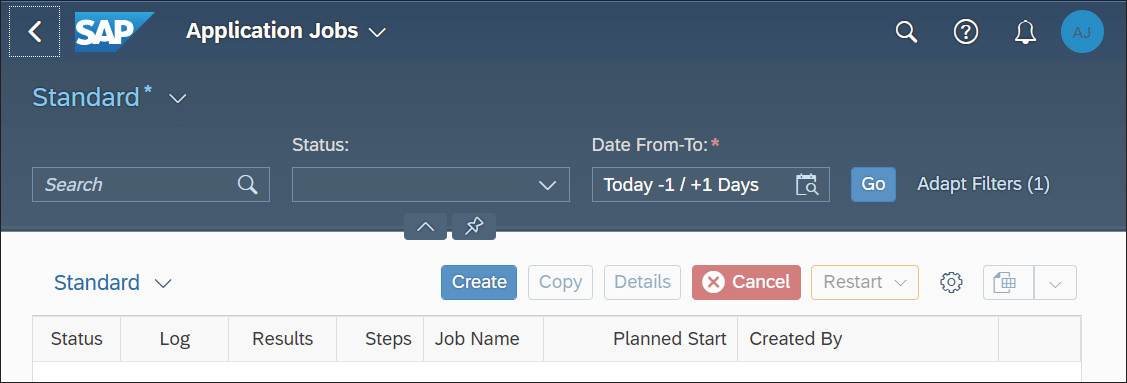
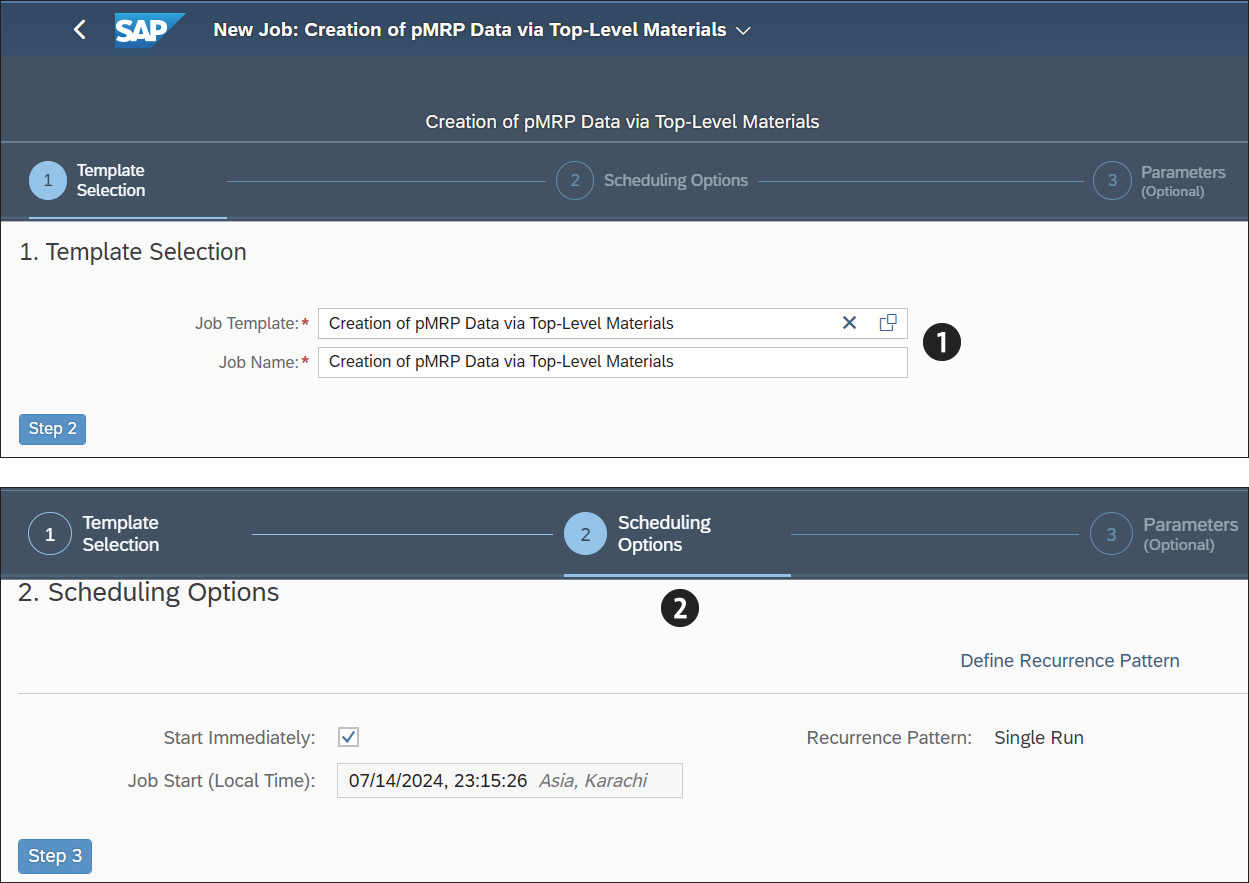
Creation of pMRP Data via Top-Level Materials
Creation of pMRP Data via Components
Creation of pMRP Data via Work Center
Learn MRP in Our Rheinwerk Course!

Setting Up Predictive MRP in SAP S/4HANA
 5 hours ago
2
5 hours ago
2
Related



The Future of Hiring at SAP: SAP Runs SmartRecruiters
7 hours ago
1




Popular

Global Keynote: The Beginning of Better | SAP Sapphire Madri...
2 weeks ago
106

Customer Success Keynote: Connected to Win: From Moment to M...
2 weeks ago
103

C_AIG Certification: How to Prepare for the New SAP Generati...
3 weeks ago
101


Making AI Value Real Today
3 weeks ago
78


 English (US) ·
 © Clint IT 2026. All rights are reserved
